
WordPress Website Password Update Without OTP, Direct Cpanel
To change the password for a user on a WordPress website, you have a couple of options. Here’s how you can do it:
-
Via WordPress Admin Dashboard:
- Log in to your WordPress admin dashboard using your current credentials.
- Once logged in, navigate to “Users” > “All Users” from the left-hand menu.
- Find the user whose password you want to change and click on their username to edit.
- Scroll down to the “Account Management” section or look for the “Generate Password” button.
- Click on “Generate Password” to create a new password or enter your own password directly into the password field.
- Make sure to confirm the new password by re-entering it or let WordPress generate a strong password for you.
- Finally, click on the “Update Profile” button to save the changes.
-
Via MySQL Database (Advanced):
- Access your website’s database, usually through phpMyAdmin or a similar tool provided by your hosting provider.
- Locate the
wpm8_userstable (or a table with a similar name depending on your WordPress database prefix). - Find the row corresponding to the user whose password you want to change. In this case, it’s the row with
user_loginas ‘admin-result’. - In the
user_passcolumn, replace the current hash value with the hash of the new password. Make sure to use the appropriate hash algorithm used by WordPress (which is typically MD5 or bcrypt). - Save the changes.
Here’s a simple way to generate a new hash for the password you want to set:
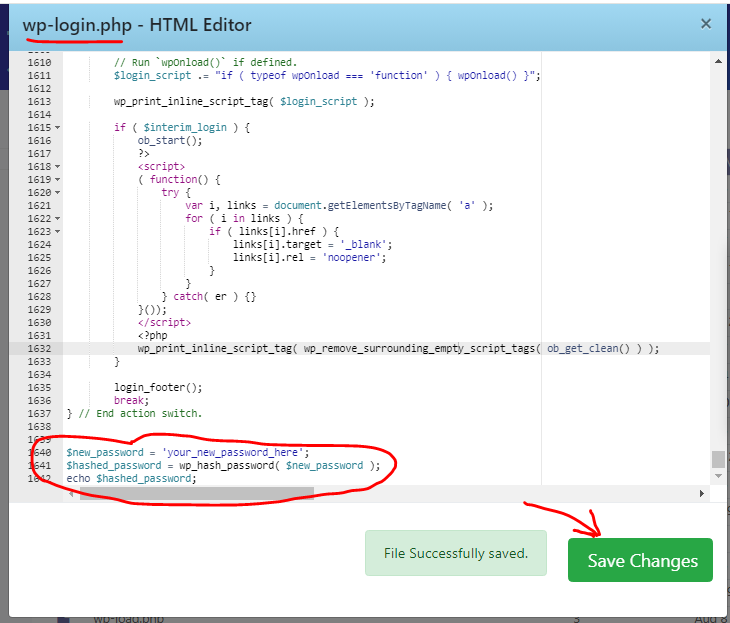
File Manager>wp-login.php file open scroll page add code and save cahnge
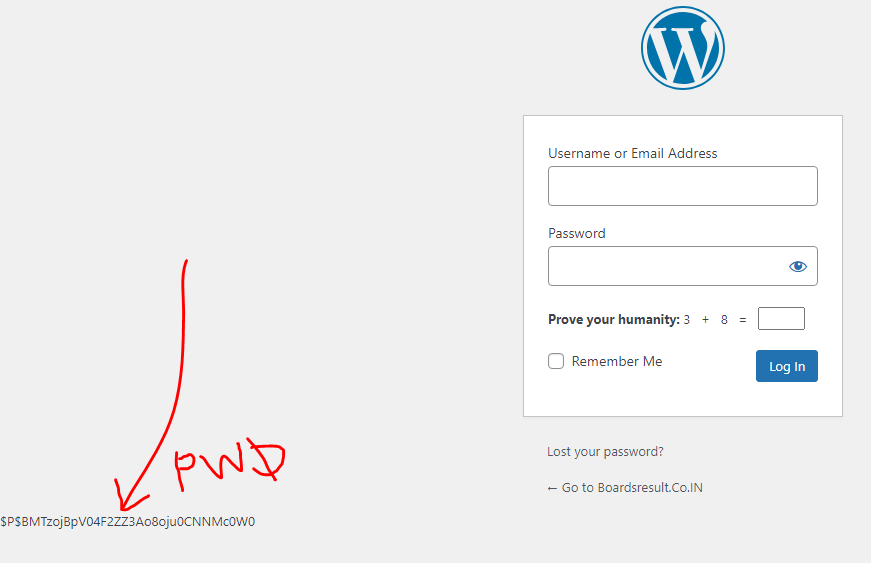
preview password hash
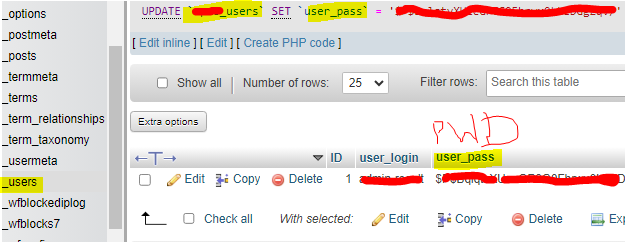
password hash update in user sql table in myphpadmin
- If you’re using PHP, you can use the
wp_hash_passwordfunction. For example:php<?php
$new_password = 'your_new_password_here';
$hashed_password = wp_hash_password( $new_password );
echo $hashed_password;
?>
Replace 'your_new_password_here' with your desired password, and then run this PHP code to generate the hash. Copy the hash generated and replace the existing hash value in the user_pass column.
Always make sure to create a strong password to enhance the security of your WordPress website.